Colorwork Studio Documentation

Last update: 2026-07-20 Release version: alpha

What is Colorwork Studio?

Colorwork Studio is an online tool to help knitters design colorwork charts, try different color combinations, and share their designs.

It renders accurate swatches by using high quality photos of real yarns.

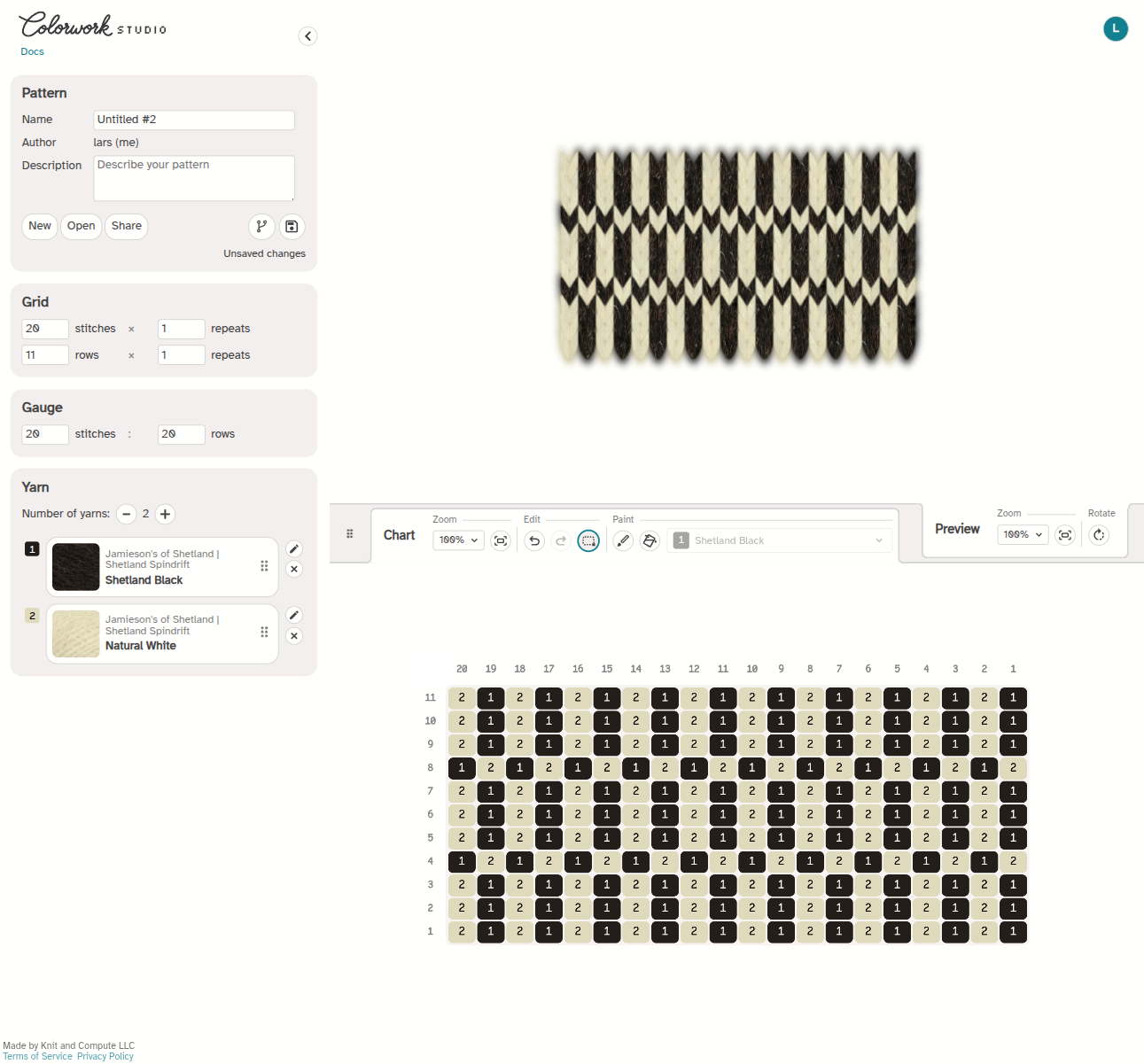
The chart editor in use
A simple black and white fair isle pattern.

To try the tool, go to colorwork.studio.

To stay updated on new features and releases, join our Google Group.

Getting Started

For the best experience, we recommend visiting the site on your desktop using the Chrome browser to access all the features.

You may start with one of the following charts: todo

Features

Pattern

In the Pattern panel, you can create a new pattern, open your saved patterns, save the current pattern, and save a copy of the current pattern, and change sharing settings.

The pattern panel in action.

Save will save the current edits to the current pattern. Note: the tool does not autosave your changes, so you will need to click the Save button to save your work.

Make a copy will create a new version of the pattern you can edit, similar to creating a forked version.

Share

Share settings let you change the permissions on who can see and make a copy of your pattern.

The sharing dialog, described in detail below.

Visibility determines who can see the current pattern. On the free tier every saved pattern is public — anyone with the link can view it. Private and unlisted (link-only) visibility are planned for upcoming paid tiers, so the other options appear greyed out for now.

Allow others to make a copy lets others create a copy they can edit.

Restrict visibility of other copies sets the visibility of copies of your pattern.

Note: since private patterns aren’t available yet, restricting copies to private currently means others can’t make a copy at all — the Make a Copy button is disabled for them.

Note: these settings prevent other people from using the Make a Copy feature to save a copy of your pattern directly. However, it doesn’t prevent other people from recreating it themselves stitch by stitch, or copy-pasting.

Here are some example scenarios, and how you might want to set these permissions:

Share my free pattern - I created a design that I’d like others to be able to discover, change colors, and make other modifications to. I want them to be able to freely share their versions too. Visibility: Public Allow others to make a copy: Yes Restrict visibility of other copies: No

Showcase only - I’d like others to be able to view my design, but not save their own editable copies of it. Visibility: Public Allow others to make a copy: No

Coming with paid tiers - keeping a design fully private, and sharing a paid pattern with buyers via an unlisted link (viewable and copyable by anyone who has the URL, without their copies being shareable onward).

Grid

You can set how many stitches and rows are in the Chart, as well as how many repeats to render in the Preview.

The grid panel settinsgs for stitches, rows and repeats.

Note: the tool currently supports up to 100 total stitches and 100 total rows (including repeats).

Gauge

This will set the width to height, or aspect ratio, of the stitches in the rendered preview.

The row and stitch gauge settings.

For example, if your knitted gauge is 20 stitches x 24 rows = 4 inches or 10 cm, you would set 20 stitches and 24 rows.

This also shows the same render if you scale the stitch and row count to a larger or smaller gauge swatch, for example, 5 stitches x 6 rows = 1 inch or 2.5 cm.

Yarn

In the Yarn panel, you can set the number of chart colors, and change colors.

The configurable set of yarns in the pattern.

Use the - and + buttons to add or remove the number of yarn colors in your chart.

Click the pencil icon to change the yarn color. Click the x icon to remove the color from that yarn slot. It will not delete the number from your chart. (To decrease the number of yarn colors, use the - button in “Number of chart colors”).

You can swap yarn colors by dragging and dropping the yarn color using the 6-dot handle on the right side.

Chart

In the Chart panel, you can see the chart for the pattern. Each cell is one stitch. The number in the cell corresponds to the numbered yarn color.

The chart panel in action.

For example, in the above swatch, 1 is Natural White, and 2 is Black.

Zoom

Zoom in or out to make the chart larger or smaller.

Edit

Use the Select tool and click and drag across a region of the chart. In the bottom right of the selection is a dropdown menu. You can copy, paste, flip, rotate, swap symbols, and shift and wrap.

The options available under the selection drop-down.

With an area selected, you can use the numbers on the keyboard 0-9 to fill the area with the corresponding symbol. Backspace clears the symbols in the selection.

Swap symbols lets you quickly swap the number of the yarn in the chart. You can use this if you want to change the colors of just this section of your chart, instead of swapping colors in the yarn panel, which would apply to the entire chart.

Shift and wrap lets you shift the stitches within your selection, and rolls around the edges. For example, you can use this if you want to align a band of fair isle stitches, and shift the motif 2 stitches to the right.

Paint

The Brush tool lets you fill stitches with a yarn color. Click on a cell to paint one stitch. Click and drag to paint multiple stitches.

The Bucket tool lets you fill in selected areas with a yarn color. Click and drag to paint a rectangular area of stitches.

Preview

In the Preview panel, the tool will render your swatch using the chart and yarn color(s).

The pattern panel in action.

Zoom

Zoom in or out to make the chart larger or smaller.

Rotate

Rotate your preview swatch 180 degrees. You can use this if you create a chart for a top-down sweater, and you would like to preview what the finished garment will look like, right-side up.

Resize Chart and Preview Panels

In the menu bar between the Chart panel and the Swatch panel, you will see a 6-dot drag handle on the left side. Drag that up or down to resize and view more of the Chart or Preview panels.