Creating your first design
This guide shows you how to create and save your first design.
You can use the studio without an account. However, you must have an account with a verified email address to save your design.
For the best experience, we recommend a laptop or desktop computer running the Chrome browser. Other modern browsers generally work, but desktop Chrome supports all the features. Mobile devices can currently view rendered swatches, but not edit.
The studio
Open the studio at colorwork.studio/swatch. The studio opens with a sample design and two random yarn colors.
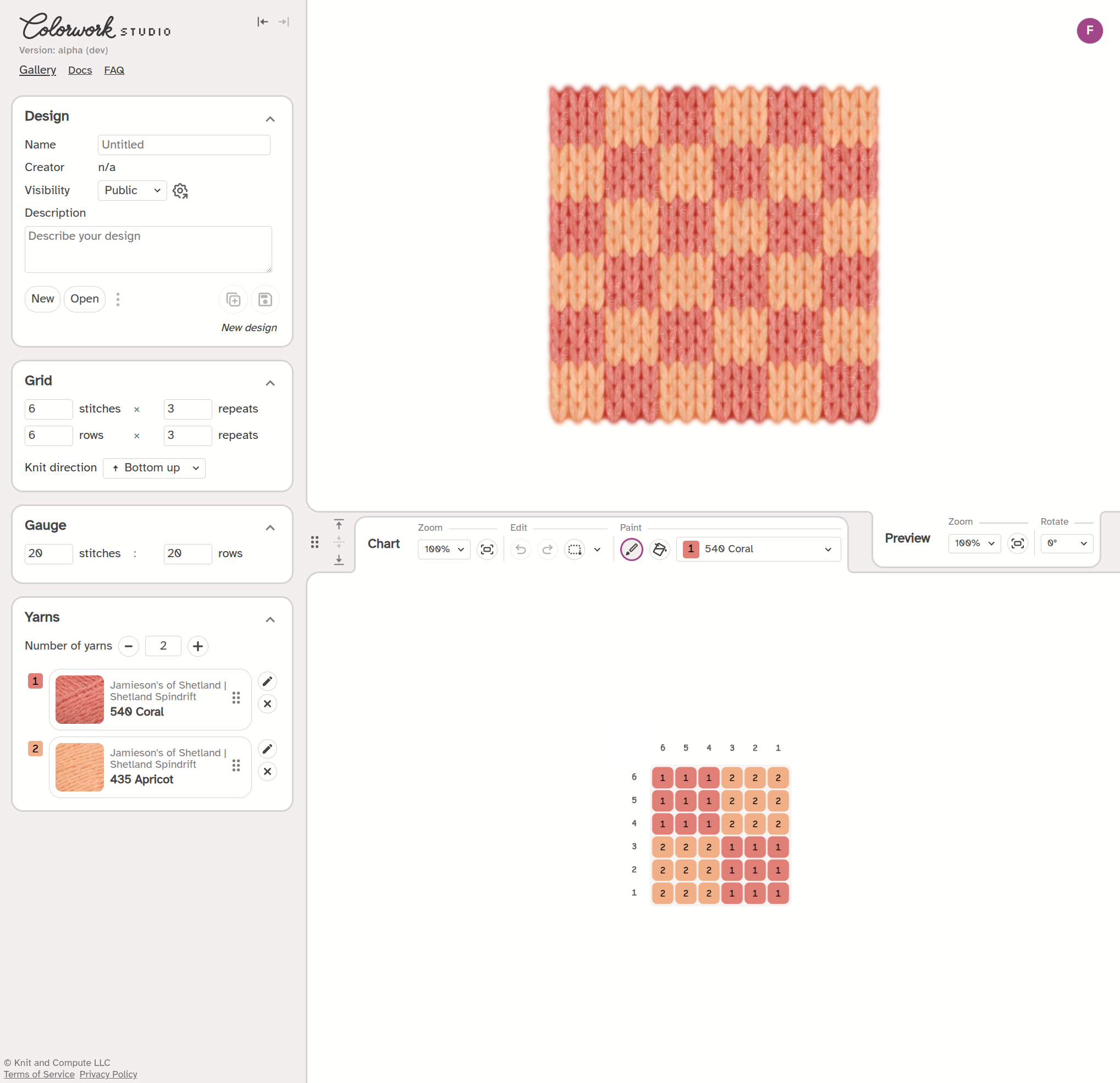
- The side panel on the left contains the design settings. It has four sections: Design, Grid, Gauge, and Yarns.
- The Preview area at the top shows the chart as a knitted swatch. This preview updates automatically when you make changes. Its Preview tab holds the viewing tools.
- The Chart at the bottom is the grid of stitches that you edit. Its Chart tab holds the editing tools.
Setting up your design
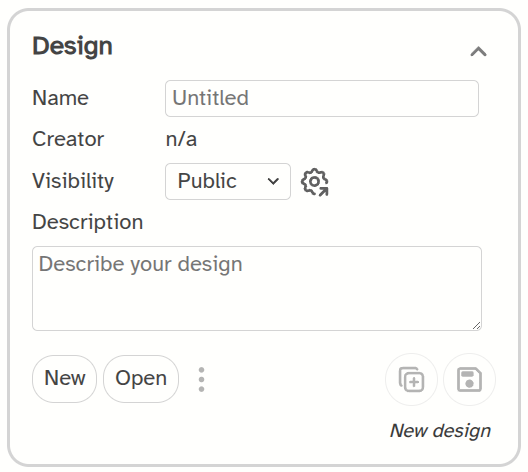
- Type a name in the Name field. You can change this name later.
- Choose a Visibility option: Public, Private, or Unlisted. On the Free tier, all designs are Public.
- Write a description in the Description field. This step is optional, and you can change the description later.
- The system does not save your work automatically. You must click the
 Save button.
Setting the chart size and gauge
Chart size
The Grid section sets the size of the chart. It also sets how many times the preview repeats:
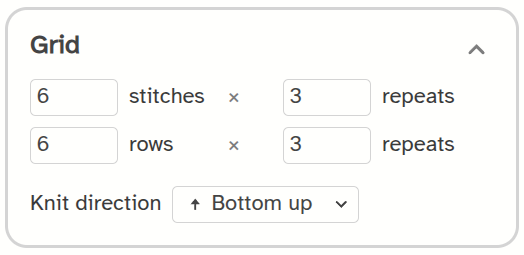
- The Stitches and Rows fields set the width and height of the chart.
- The Repeats fields set how many times the preview repeats in the horizontal and vertical directions.
You can insert new stitches and rows into the middle of your chart. To learn how, read about the selection tools.
Gauge
The Gauge section uses the number of stitches and rows per 4 inches (10 centimeters). The default gauge is 20 stitches and 20 rows.
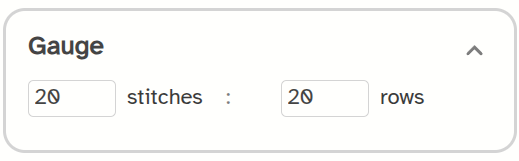
- Type your custom gauge (for example, 28 stitches and 32 rows). The preview will change the shape of each stitch to match your gauge.
Adding yarns
The Yarn section links alphanumeric symbols (for example, the number "1") to specific yarn colors (for example, "Shetland Spindrift Coral").
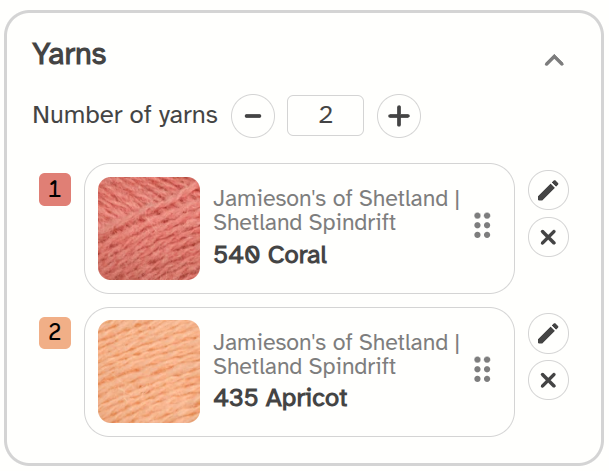
- Click the
 Add a yarn icon. The Yarn library window will open.
 - Search for a yarn or use the filters. Click a yarn to add it to your design.
To change a yarn, click the  Edit yarn icon next to it. If you use the Free tier, your design can include a maximum of 5 yarns.
Painting stitches
In the Chart tab, select the  Paint mode icon.
- Select a yarn color from the dropdown menu. Alternatively, press the keyboard symbol that matches the yarn (for example, the "1" key).
- Click a single stitch to paint it. Click and drag your mouse to paint a line of multiple stitches.
To paint a rectangle, select the  Fill mode icon. Then, click and drag your mouse across the chart.
To remove stitches, select the  Eraser icon. You can also press the Backspace key on your keyboard. An erased stitch appears as an empty gap in the preview.
To reverse an action, click the  Undo icon (or press Ctrl+Z on Windows, and Cmd+Z on Mac). To repeat an action, click the
  Redo icon (or press Ctrl+Shift+Z on Windows, and Cmd+Shift+Z on Mac).
Watching the preview
The Preview area displays your chart rendered using your selected yarn colors.
- Use Zoom to make the rendered image larger or smaller. Click the
 Fit to screen icon to see the entire swatch at once.
 - Use Rotate to turn the swatch 90 degrees. This action only rotates the preview. It does not change your saved design.
Saving
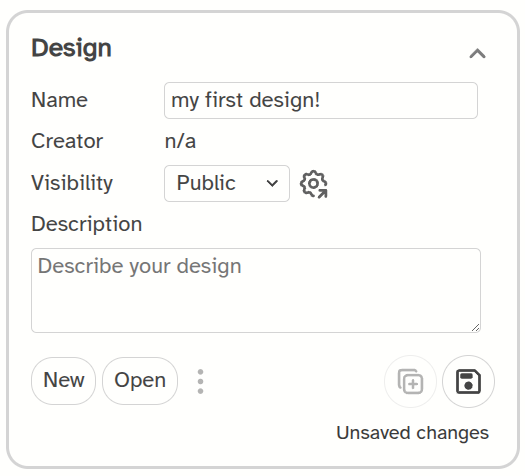
- Click the Save
icon in the Design section. You can also press Ctrl+S on your keyboard for Windows, and Cmd+S for Mac.
Note: Colorwork Studio does not save your progress automatically. You must click the
If you are using the Free tier, all of your designs are Public. Make sure you own the copyrights to any designs you save publicly.
If you are a Designer, consider creating Unlisted designs. Knitters who buy your patterns will be able to choose their own colors and knit from your charts. For more info, see Premium features.